
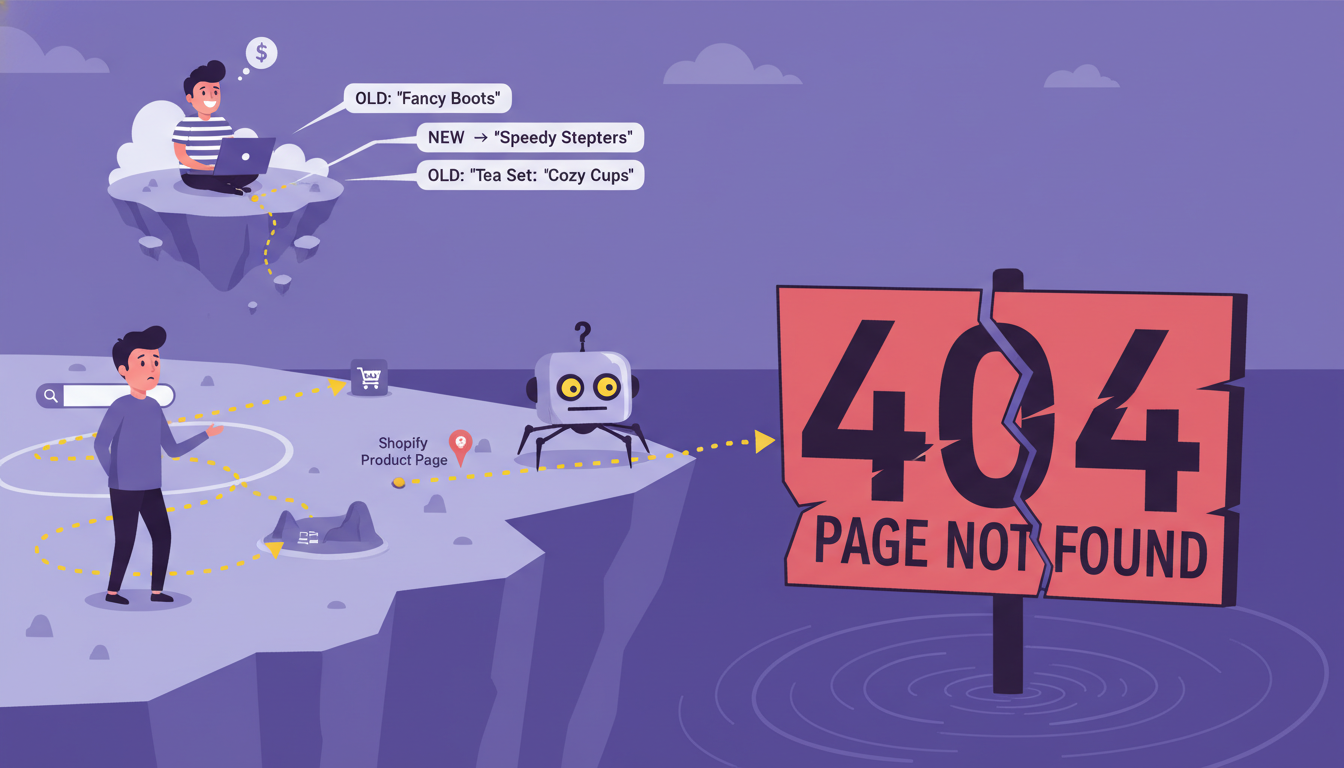
For Shopify merchants who rename products, delete seasonal items, or restructure collections — here’s what broken links cost you in SEO and the right way to fix them with redirects.
Every time you rename a product, delete a seasonal item, or restructure a collection, Shopify changes the URL. The old address still exists in Google’s index, in backlinks from other sites, in emails you sent last year, in customer bookmarks. And now it goes nowhere.
That page is a broken link. And it’s costing you.
- Renamed products create 404 errors overnight
- Google removes 404 pages from search results
- Backlink SEO value lost — no way to transfer it
- Redirects send visitors — and Google — to the right page
- SEO authority transfers from old URL to new destination
- Customers land on relevant pages, not error screens
How Shopify breaks your links without telling you
Shopify generates URLs automatically based on the names you give your products and collections. Rename “Winter Jackets” to “Puffer Jackets” and the URL changes. Delete a product that’s out of stock and the URL disappears. Change your domain and every URL on your store changes.
Shopify doesn’t warn you when this happens. No alert, no list of what broke, no automatic fix. The old URLs just return a 404 — the internet’s way of saying “this page doesn’t exist anymore” — and nothing tells you about it.
For stores that regularly update inventory, run seasonal products, or rename collections, broken links pile up fast. Your store is almost certainly contributing to that number.
Plug In SEO monitors your store and flags every broken link automatically. See the list, add the redirect destination, and it’s fixed — no need to go into Shopify settings.
Try Plug In SEO free →What broken links actually do to your SEO
A 404 page hurts your store in two ways.
Google loses trust in your site. Google crawls your store regularly. When it finds pages that used to rank returning a 404, it removes them from search results. Any position those pages held is gone. If the page had backlinks from other sites pointing to it, that SEO value disappears too — because there’s nothing there to pass it to.
Customers hit a dead end. Someone clicks a link to your store — from Google, from an old Instagram post, from an email — and lands on a blank error page. They don’t know where to go. They leave. That’s a lost sale, and it signals to Google that your site didn’t give the searcher what they needed.
Not every 404 is a crisis. A product you deleted last week with no backlinks and no search traffic isn’t a disaster. The damage comes from pages that had ranking history, had external links pointing to them, or were part of a customer’s purchase path.
Plug In SEO monitors your store and flags every broken link automatically — giving you a list of what’s broken and where. Plans start from $29.99/month. Broken links are also one of the top Shopify SEO problems we cover in our full troubleshooting guide.
What a redirect does — and why it matters
A redirect is a simple instruction: when someone visits the old URL, automatically send them to the new one instead. The visitor never sees the 404. Google follows the redirect and transfers the SEO value from the old page to the new one.
That last part is important. If a page on your store had backlinks from other websites, those links were sending SEO authority to your store. When you delete the page without a redirect, that authority evaporates. Set up a redirect and most of it transfers to whatever page you point it to.
This is why redirects aren’t just about customer experience — they’re about not throwing away SEO value you’ve already earned.
The two redirect mistakes that make things worse
Getting the redirect wrong can be as bad as not having one at all.
Redirecting to a page that’s also broken. You redirect an old URL to a new one — but the new page is also a 404. Now you’ve created a chain that leads nowhere. Google stops following redirect chains after a few hops and gives up. Always check that the destination page actually exists before setting up the redirect.
Redirecting everything to the homepage. This is the most common mistake. A customer who clicked a link to your “Women’s Winter Boots” collection and lands on your homepage has no idea where to go. They leave. Google registers that your redirect didn’t give searchers what they were looking for.
The rule: redirect to the most relevant similar page. Deleted a product? Redirect to its collection. Renamed a collection? Redirect the old URL to the new one. If there’s no obvious match, go to the nearest parent category — not the homepage.
How to find and fix broken links on your Shopify store
Option 1 — Plug In SEO (fastest). The app scans your store automatically and gives you a list of every broken link. To fix one, open the broken links section, add the new destination URL, and save. Done. You don’t need to touch any settings in Shopify.
Option 2 — Google Search Console (free). Go to Coverage → Not Found (404). Google logs every 404 it finds while crawling your site. It won’t catch every broken link, but it catches the ones Google has already tried to visit.
Option 3 — Shopify manually. Once you’ve identified a broken URL, go to Online Store → Navigation → URL Redirects → Add redirect. Enter the old URL and the new destination.
The best habit: check for broken links every time you delete a product or rename a collection. Don’t let them pile up. A handful of broken links is a quick fix. A hundred is a morning’s work. For a full audit beyond broken links, our Shopify SEO checklist covers every on-page and technical issue worth checking.
Frequently asked questions about Shopify broken links
What is a broken link on a Shopify store?
A broken link is a URL that no longer leads to an existing page — it returns a 404 error instead. On Shopify, they’re usually created when products are deleted, collections are renamed, or domains are changed.
Do broken links hurt Shopify SEO?
Yes. Google removes 404 pages from search results, which means any rankings those pages had are lost. If the broken page had backlinks from other sites, that SEO value is also lost unless you set up a redirect.
What is a redirect on Shopify?
A redirect automatically sends visitors from an old URL to a new one. Instead of seeing a 404 error, they land on the right page. For SEO, it also transfers most of the ranking authority from the old page to the new destination.
Should I redirect deleted products to the homepage?
No — redirect to something relevant instead. If you deleted a product, redirect to the collection it belonged to. If you renamed a collection, redirect the old URL to the new one. Sending everyone to the homepage is confusing for customers and signals to Google that the redirect didn’t actually help.
How do I find broken links on my Shopify store?
Three ways: use Plug In SEO (scans automatically and gives you a list), check Google Search Console under Coverage → Not Found, or audit manually using a tool like Ahrefs or Screaming Frog. Plug In SEO is the fastest option for non-technical merchants.
Can I fix broken links directly in Plug In SEO?
Yes. Once Plug In SEO flags a broken link, you can add the redirect destination directly inside the app — no need to go into Shopify’s URL Redirects settings separately.
Find and fix every broken link on your store
Plug In SEO monitors your store continuously and gives you a list of every 404 and broken redirect. Fix them directly inside the app — no Shopify admin navigation needed. Plans start from $29.99/month.
Find broken links on your store with Plug In SEO →